
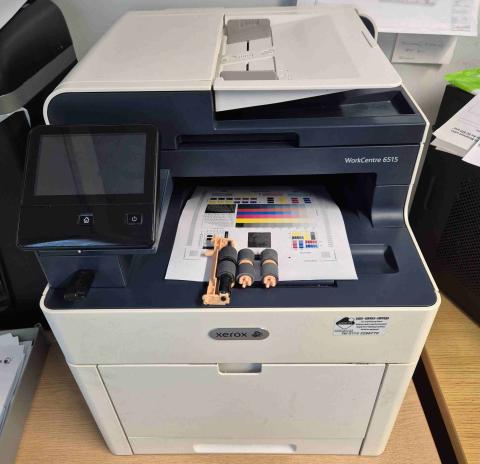
Fixing Frequent Paper Jams: Xerox WorkCentre 6515 Feed Kit Installation in Wakefield
A business client based in Wakefield recently contacted us regarding severe misfeeding issues with their Xerox WorkCentre 6515 multifunction printer. The device was consistently pulling multiple sheets or failing to pick up paper from the tray altogether.
To restore seamless print operations, we scheduled an on-site service call to replace the worn rollers with a genuine Xerox Paper Tray Feed Roller Kit (Part Number: 116R00010). This specific kit eliminates the frustration of constant misfeeds by refreshing the machine's internal grip and separation surfaces.
Why the Xerox 116R00010 Kit is Essential
Over time, paper dust and friction smooth down the high-elastic rubber surface of a printer's pickup rollers. This loss of traction leads to frequent paper jams.
“Made with Grade A quality materials, this roller delivers consistent paper feeding and reduces jamming issues for uninterrupted printing operations.”
The 116R00010 kit features high-quality, wear-resistant replacement parts that maintain a strong grabbing force for up to 100,000 pages. This ensures long-term operational reliability for high-frequency office printing.
Step-by-Step Installation Guide
Our technician completed the swap on-site using the following standard replacement process:
1. Safe Power Down
-
Press the Power button on the control panel.
-
Wait for the screen prompt and select Power Down.
-
Unplug the power cable from the wall to ensure total electrical safety.
2. Removing the Paper Tray & Separator Assembly
-
Pull Paper Tray 1 completely out of the printer and set it on a flat surface.
-
Locate the orange separation roller assembly inside the tray.
-
Push the white release tab, roll the assembly up, and slide it to the right to lift it out.
-
Slide the new separation roller from the 116R00010 kit into the right-side slot, lean it down, and press until it snaps into place.
3. Replacing the Feed Rollers Inside the Machine
-
Reach into the empty tray cavity under the printer with your palm facing up.
-
Remove the small orange plastic guard shield by pressing back on its front tab.
-
Locate the two feed wheels side by side on the metal shaft.
-
Rotate each wheel to locate its orange locking tab, release it with a fingernail, and slide the old rollers off the shaft.
-
Slide the new rollers from your kit onto the shaft, ensuring the internal prongs line up correctly until the tabs click firmly into place.
-
Snap the orange plastic guard shield back into its original black slots.
4. Reassembly and Calibration
-
Slide Paper Tray 1 back into the machine.
-
Reconnect the power cable and turn the printer on.
-
Run a series of test print jobs to ensure smooth document processing without any feeding errors.
Professional Printer Support in Wakefield
Replacing your feed rollers is a cost-effective way to extend the lifespan of your office equipment. If your Wakefield-based business is struggling with disruptive printer errors, routine maintenance kits can prevent costly downtime.
If you would like us to handle this installation for you, let me know how many devices need servicing and your preferred turnaround time so I can provide a custom quote.